Complete Privacy with the Spinneret Ollama Bridge

Complete Privacy with the Spinneret Ollama Bridge
Privacy is a critical concern for many writers. Whether you're working on the next bestselling novel or sensitive personal content, you want to ensure your words remain private and secure.
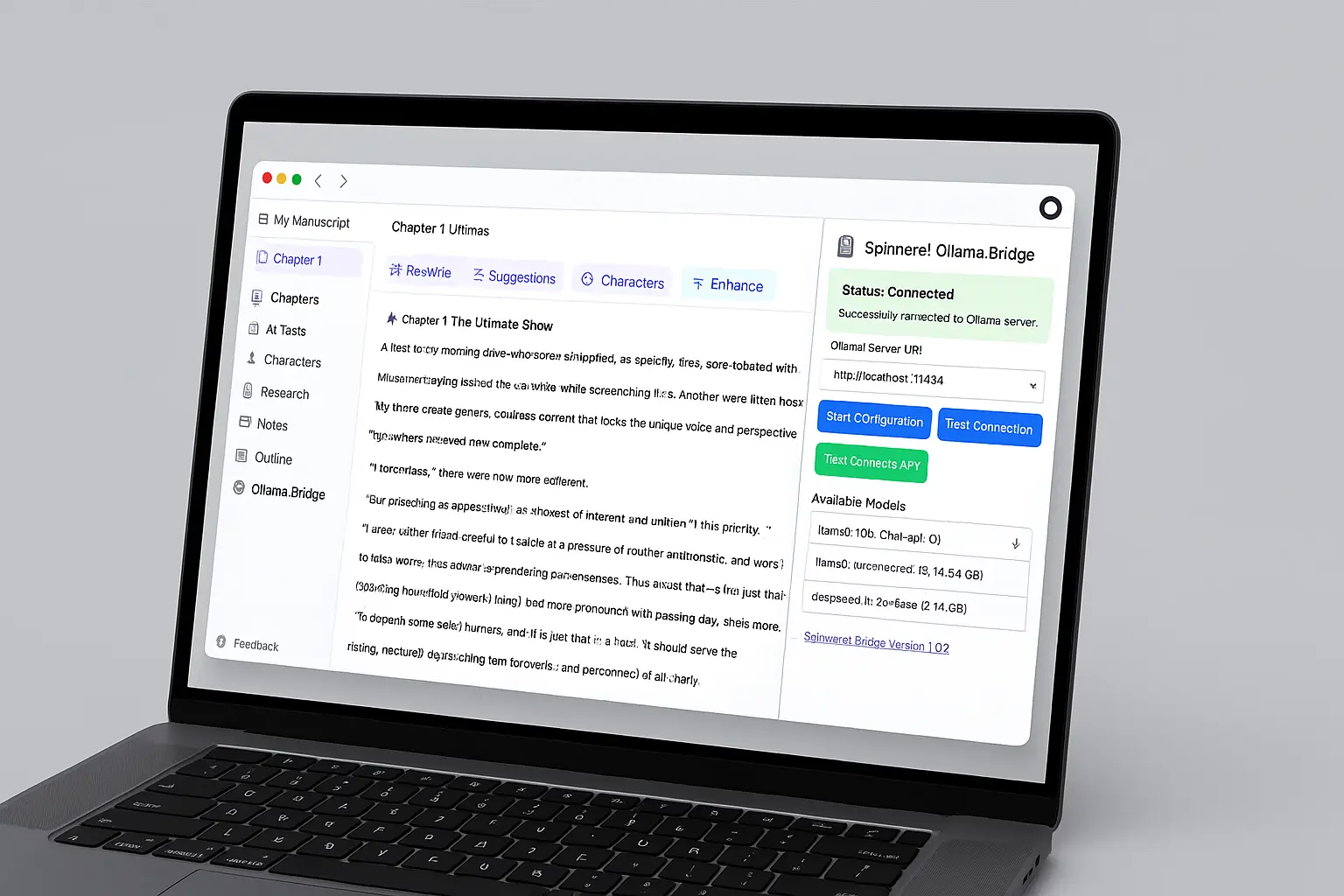
That's why we created the Spinneret Ollama Bridge – a powerful extension that connects Spinneret.Studio to local language models running on your computer, providing AI assistance without sending your content to external APIs.
What is the Spinneret Ollama Bridge?
The Spinneret Ollama Bridge is a browser extension that creates a secure connection between Spinneret.Studio and Ollama, an application that runs large language models locally on your computer.
This means you can use AI-powered features like character conversations, proofreading, and writing suggestions without your content ever leaving your device.
Benefits of Using the Ollama Bridge
1. Complete Privacy
When you use the Ollama Bridge, your writing never leaves your computer. All AI processing happens locally, ensuring that your creative work remains completely private.
2. No API Costs
Since you're running models locally, there are no API costs to worry about. This makes the Ollama Bridge a cost-effective solution for writers who use AI features extensively.
3. Offline Capability
With the Ollama Bridge, you can use AI features even without an internet connection. Write from anywhere, with AI assistance always available.
4. Customizable Models
You can choose from a variety of language models to suit your needs, from smaller, faster models for basic assistance to larger, more powerful models for complex tasks.
Getting Started with the Ollama Bridge
Setting up the Ollama Bridge is straightforward:
-
Install Ollama: Download and install Ollama on your computer.
-
Install the Bridge Extension: Get the Spinneret Ollama Bridge extension from The Chrome Web Store
-
Configure Your Machine To Allow Ollma Access: Follow our detailed setup guide to allow your Ollama instance to communicate with the Spinneret Ollama Bridge.
-
Pull a Model: Using Ollama, pull a language model that fits your needs (e.g.,
ollama pull llama2orollama pull mistral). -
Connect in Spinneret.Studio: Open Spinneret.Studio and navigate to Settings > AI > Ollama Bridge to connect to your local models.
Recommended Models
For the best experience with Spinneret.Studio, we recommend these models:
- Mistral 7B: A good balance of quality and performance for most writing tasks.
- Llama 2 13B: Offers higher quality assistance for more complex writing needs.
- Phi-2: A smaller, faster model that works well for basic writing assistance.
Troubleshooting
If you encounter issues with the Ollama Bridge:
- Ensure Ollama is running on your computer
- Check that you've pulled at least one model using Ollama
- Restart the browser if the extension isn't connecting
- Verify that no firewall is blocking the connection if accessing it over a remote connection.
Privacy Comparison: API vs. Ollama Bridge
| Aspect | OpenAI API | Spinneret Ollama Bridge |
|---|---|---|
| Where processing happens | OpenAI's servers | Your local computer |
| Data storage | May be stored on OpenAI servers | Never leaves your device |
| Internet required | Yes | No |
| Cost | Pay per token | Free (after downloading) |